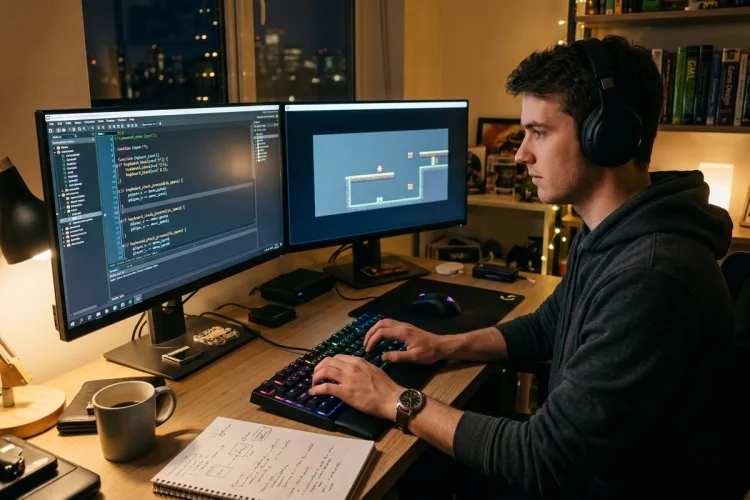
Keyboard controls may look simple from the player’s perspective. Press W to move forward, Space to jump, and Escape to open the pause menu.
Behind the scenes, however, the game must recognise exactly when each key is pressed, held, or released. Learning how to use keyboard input in GameMaker is one of the first essential skills for a new developer.
It allows you to create player movement, attacks, menu navigation, dialogue choices, shortcuts, and almost every other interactive action in a PC game. GameMaker provides several GML functions for reading keyboard states.
The most important are keyboard_check(), keyboard_check_pressed(), and keyboard_check_released(). Although their names are similar, they behave differently and are suited to different gameplay situations.
In this guide, you will learn how these functions work, how to detect letter and special keys, and how to build a practical control system without making your code unnecessarily complicated.
How Keyboard Input Works in GameMaker
GameMaker uses an event-driven system. Code runs in response to events such as an instance being created, a collision occurring, or a new game step beginning.
Keyboard input is normally checked inside an object’s Step Event. This event runs every game step while the instance exists, making it suitable for controls that must be monitored continuously.
For example, the following code moves an instance to the right:
if (keyboard_check(vk_right))
{
    x += 4;
}
During every step, GameMaker asks whether the right arrow key is currently held. When the answer is true, four pixels are added to the instance’s horizontal position.
This basic relationship appears throughout keyboard programming:
- Check the state of a key.
- Decide what that input means.
- Perform the associated action.
For a small project, these stages may fit into a few lines. Larger games usually separate input detection from movement, combat, and menu logic to keep the project manageable.
Understand the Three Main Keyboard Functions
Choosing the correct keyboard function is important. Using the wrong one can make a character move only once, fire dozens of shots, or repeatedly open and close a menu.
Detect a Held Key with keyboard_check()
The keyboard_check() function returns true during every step in which a specified key remains held. It is ideal for continuous actions such as walking, running, aiming, or charging an ability.
if (keyboard_check(ord("D")))
{
    x += move_speed;
}
As long as the player holds D, the object continues moving right.
Detect a New Press with keyboard_check_pressed()
The keyboard_check_pressed() function returns true only during the step in which a key changes from released to pressed. The player must release and press the key again before the function can return true another time.
if (keyboard_check_pressed(vk_space))
{
    jump();
}
This function is useful for jumping, firing one projectile, confirming a menu selection, starting dialogue, or toggling a pause screen.
Detect a Release with keyboard_check_released()
The keyboard_check_released() function activates during the step in which a held key is lifted. It will not activate again until the key has been pressed and released another time.
if (keyboard_check_released(ord("C")))
{
    release_charged_attack();
}
This pattern works well when the player holds a key to charge an action and releases it to perform the attack.
Use Letter Keys and Virtual Key Constants
GameMaker needs a numerical keycode when checking the keyboard. For letters and number keys, you can obtain that value using the ord() function.
keyboard_check(ord("W"));
keyboard_check(ord("A"));
keyboard_check(ord("1"));
When ord() is used with GameMaker’s keyboard-checking functions, the string should contain one uppercase letter from A to Z or one number from 0 to 9.
Do not write this:
keyboard_check(ord("w"));
Use an uppercase letter instead:
keyboard_check(ord("W"));
Special keys use built-in constants beginning with vk_. Common examples include vk_left, vk_right, vk_up, vk_down, vk_space, vk_enter, vk_escape, vk_shift, and vk_control.
if (keyboard_check_pressed(vk_escape))
{
    game_paused = !game_paused;
}
These constants make code easier to read. Someone reviewing the project can immediately understand that vk_escape refers to the Escape key.
Create Four-Direction Player Movement
To create smooth keyboard movement, first add a Create Event to the player object:
move_speed = 4;
Next, add the following code to its Step Event:
var _right = keyboard_check(vk_right) || keyboard_check(ord("D"));
var _left  = keyboard_check(vk_left)  || keyboard_check(ord("A"));
var _down  = keyboard_check(vk_down)  || keyboard_check(ord("S"));
var _up    = keyboard_check(vk_up)    || keyboard_check(ord("W"));

var _move_x = _right - _left;
var _move_y = _down - _up;

x += _move_x * move_speed;
y += _move_y * move_speed;
The || operator means “or,” so the player can use either the arrow keys or WASD. Subtracting opposite inputs produces a useful direction value of -1, 0, or 1.
There is one issue with this version: diagonal movement is faster because horizontal and vertical motion happen simultaneously. You can normalise the direction to keep movement speed consistent:
if (_move_x != 0 || _move_y != 0)
{
    var _length = point_distance(0, 0, _move_x, _move_y);

    _move_x /= _length;
    _move_y /= _length;
}

x += _move_x * move_speed;
y += _move_y * move_speed;
Test the controls before adding collisions, animation, or combat. When movement works correctly on its own, later problems are much easier to identify.
Handle One-Time Actions and Key Combinations
Continuous movement and one-time actions should not use the same input check. A basic attack, for example, will usually use keyboard_check_pressed() so it activates once instead of every step.
if (keyboard_check_pressed(ord("Z")))
{
    instance_create_layer(x, y, "Instances", obj_projectile);
}
You can also require multiple keys at the same time. The following example activates sprinting while Shift is held:
var _current_speed = move_speed;

if (keyboard_check(vk_shift))
{
    _current_speed = move_speed * 1.5;
}
A combination can also require a newly pressed action key:
if (keyboard_check(vk_control)
    && keyboard_check_pressed(ord("S")))
{
    save_game();
}
The && operator means “and.” Both conditions must be true before save_game() runs.
Be careful with overlapping shortcuts. When the same key performs several actions in the same situation, the game may execute more than the player expects. Input rules should consider whether the player is exploring, fighting, typing, or navigating a menu.
Accept Typed Text with keyboard_string
Movement functions are not the best tools for entering a player name or chat message. GameMaker provides the built-in keyboard_string variable for printable text.
It stores recently typed printable characters and responds to Backspace by removing the latest character. The official manual states that it can contain up to 1,024 characters, and developers can edit or clear the value directly.
In a Create Event, you could begin with:
keyboard_string = "";
Then limit the entered name inside the Step Event:
if (string_length(keyboard_string) > 12)
{
    keyboard_string = string_copy(keyboard_string, 1, 12);
}
The entered text can be displayed in a Draw GUI Event:
draw_text(50, 50, "Name: " + keyboard_string);
Clear keyboard_string when text entry begins so old input does not appear in the new field. You should also temporarily disable gameplay shortcuts while the player is typing. Otherwise, entering a letter such as W could both add text and move the character.
Organise Controls for a Larger Project
Direct keyboard checks are fine for a small prototype. As the game grows, however, repeatedly writing keyboard_check(ord("W")) across many objects can make control changes difficult.
A cleaner approach is to define actions once:
move_left  = keyboard_check(ord("A")) || keyboard_check(vk_left);
move_right = keyboard_check(ord("D")) || keyboard_check(vk_right);
jump_pressed = keyboard_check_pressed(vk_space);
attack_pressed = keyboard_check_pressed(ord("Z"));
Movement and combat systems can then read these action variables rather than checking physical keys themselves.
This creates a useful separation between what the player wants to do and which key produces that action. Later, you can add gamepad support or configurable controls without rewriting every gameplay system.
GameMaker also provides keyboard-mapping functions, including keyboard_set_map(). However, remapping one key to another changes how GameMaker interprets that key, so it should be used carefully and reversed when no longer needed.
Common Keyboard Input Mistakes
A frequent beginner mistake is using keyboard_check_pressed() for movement. Because it returns true for only one step, the player moves a tiny distance and immediately stops.
The opposite problem happens when keyboard_check() is used for actions such as opening a menu. Since the function stays true while the key is held, the menu may toggle repeatedly.
Other common issues include using lowercase letters inside ord(), placing input code in the Create Event instead of the Step Event, and forgetting to initialise variables such as move_speed.
Debug messages can help confirm whether an input is detected:
if (keyboard_check_pressed(vk_space))
{
    show_debug_message("Space pressed");
}
Add controls gradually and test after every change. When a new key behaves incorrectly, you will know which small section of code needs attention.
Keyboard input in GameMaker becomes much easier once you understand the three main states.
Use keyboard_check() for actions that continue while a key is held, keyboard_check_pressed() for one-time actions, and keyboard_check_released() for behaviour that happens when the player lets go.
Letter and number keys can be detected with ord(), while arrows, Space, Escape, and other special keys use vk_* constants. As your project grows, organise physical keys into reusable gameplay actions so controls remain easy to modify.
Open a small test project and create movement, a one-time attack, and a pause key. Experiment with changing each keyboard function and observe the result. Practical testing is the fastest way to make GameMaker input feel natural.