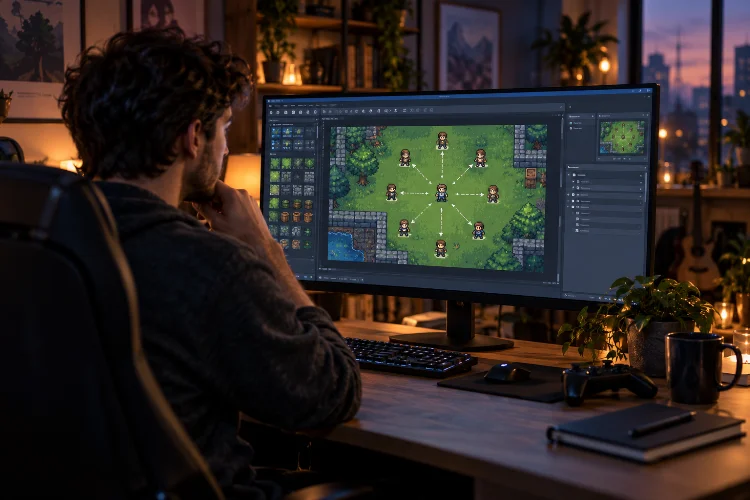
Movement is one of the first systems that makes a game actually feel like a game.
Press a key, your character moves, and suddenly that collection of sprites and objects starts becoming interactive.
For top-down RPGs, adventure games, shooters, and many other 2D projects, four-direction movement is often a good start-but allowing diagonal movement usually makes controls feel much smoother.
That is where eight-direction movement comes in.
Learning how to create eight-direction movement in GameMaker means allowing the player to travel left, right, up, down, and diagonally in four additional directions.
The basic implementation is surprisingly simple, but there is an important problem beginners often miss: diagonal movement can accidentally become faster than horizontal or vertical movement.
In this guide, we will build an eight-way movement system with GML, fix diagonal speed, add collision support, and look at ways to connect movement with directional animation.
1. What Is Eight-Direction Movement?
Eight-direction movement allows an object to travel in eight possible directions:
Up, down, left, right, up-left, up-right, down-left, and down-right.
GameMaker’s official movement guide demonstrates that basic four-way movement can be converted into eight-way movement simply by allowing horizontal and vertical keyboard checks to run at the same time instead of making each direction mutually exclusive.
For example:
if (keyboard_check(vk_left))
{
    x -= 2;
}

if (keyboard_check(vk_right))
{
    x += 2;
}

if (keyboard_check(vk_up))
{
    y -= 2;
}

if (keyboard_check(vk_down))
{
    y += 2;
}
Pressing only Right moves horizontally.
Holding Right and Up simultaneously changes both x and y, producing diagonal movement.
This simple approach works, but it comes with an important mathematical problem that becomes noticeable when your movement speed increases.
2. Read Horizontal and Vertical Input Separately
Instead of writing four independent movement blocks, a cleaner method is to convert keyboard input into horizontal and vertical values.
Add this code to your player’s Step Event:
var _xinput = keyboard_check(vk_right) - keyboard_check(vk_left);
var _yinput = keyboard_check(vk_down) - keyboard_check(vk_up);
These variables normally produce values between -1 and 1.
If the player holds Right:
_xinput = 1
If they hold Left:
_xinput = -1
If neither—or both—is pressed:
_xinput = 0
The same principle applies vertically.
GameMaker uses this kind of input calculation in its official movement examples because it gives you a compact movement vector that can later be multiplied by speed or passed to movement functions.
You could then write:
x += _xinput * move_speed;
y += _yinput * move_speed;
Assuming move_speed was created earlier:
move_speed = 4;
You now have functional eight-way movement.
Almost.
3. Why Diagonal Movement Becomes Faster
There is a subtle problem with the code above.
Suppose move_speed is 4.
Moving right changes the player’s position by:
x = 4
y = 0
The total distance travelled is 4 pixels.
But moving down-right produces:
x = 4
y = 4
The character is now travelling along the diagonal of a square.
Using the Pythagorean theorem, the actual distance becomes:
√(4² + 4²) ≈ 5.66
That means diagonal movement is roughly 1.414 times faster than straight movement.
GameMaker’s official advanced eight-way movement example specifically highlights this problem and recommends correcting the movement vector so diagonal directions maintain the same overall speed as horizontal and vertical movement.
In a slow prototype, you may barely notice.
In a fast action game, however, players may learn that moving diagonaly gives them an unintended speed advantage.
4. Normalize the Movement Vector
The solution is to normalize your movement vector.
Normalization changes the length of a vector to 1 while keeping its direction. You can then multiply that normalized vector by your desired movement speed.
One straightforward GML approach is:
var _xinput = keyboard_check(vk_right) - keyboard_check(vk_left);
var _yinput = keyboard_check(vk_down) - keyboard_check(vk_up);

var _length = point_distance(0, 0, _xinput, _yinput);

if (_length > 0)
{
    _xinput /= _length;
    _yinput /= _length;
}

x += _xinput * move_speed;
y += _yinput * move_speed;
When travelling only right, the vector is (1, 0), so nothing meaningful changes.
When travelling diagonally, the input is initially (1, 1). Its length is approximately 1.414, so each component becomes roughly:
0.707
Now, with a speed of 4:
x movement ≈ 2.83
y movement ≈ 2.83
The combined distance is still 4.
That produces consistant movement speed in every direction.
5. Using Direction and Length Functions Instead
GameMaker also provides useful angle and vector functions that can solve the same problem.
You can calculate the movement direction with point_direction():
var _xinput = keyboard_check(vk_right) - keyboard_check(vk_left);
var _yinput = keyboard_check(vk_down) - keyboard_check(vk_up);

if (_xinput != 0 || _yinput != 0)
{
    var _dir = point_direction(0, 0, _xinput, _yinput);

    x += lengthdir_x(move_speed, _dir);
    y += lengthdir_y(move_speed, _dir);
}
point_direction() returns the angle between two coordinate positions. In this example, (0, 0) acts as the origin and the keyboard input becomes the destination vector.
lengthdir_x() and lengthdir_y() then calculate the horizontal and vertical components for a particular distance and direction. Because the length is always move_speed, diagonal movement automatically uses the same overall distance as straight movement.
This technique can also be useful later for knockback, projectiles, enemy movement, aiming systems, and many other mechanics.
6. Adding WASD Controls
You do not have to use arrow keys.
For WASD movement, replace the virtual-key constants with ord():
var _xinput =
    keyboard_check(ord("D")) -
    keyboard_check(ord("A"));

var _yinput =
    keyboard_check(ord("S")) -
    keyboard_check(ord("W"));
GameMaker’s official movement guide uses uppercase letters inside ord() for WASD keyboard input.
You can even support both control schemes:
var _right = keyboard_check(vk_right) || keyboard_check(ord("D"));
var _left  = keyboard_check(vk_left)  || keyboard_check(ord("A"));
var _down  = keyboard_check(vk_down)  || keyboard_check(ord("S"));
var _up    = keyboard_check(vk_up)    || keyboard_check(ord("W"));

var _xinput = _right - _left;
var _yinput = _down - _up;
This gives players more flexibility without requiring a complicated input system.
For larger games, however, consider storing controls separately so key remapping can be added later instead of hardcoding every keyboard button throughout your project.
7. Add Collision Detection to Eight-Way Movement
Moving by directly modifying x and y does not automatically stop your player from passing through walls.
For a simple top-down game, GameMaker provides move_and_collide(), which attempts to move an instance along X and Y while avoiding selected objects or tile maps. The function checks movement incrementally and can return information about what was hit.
First normalize the movement:
var _xinput = keyboard_check(vk_right) - keyboard_check(vk_left);
var _yinput = keyboard_check(vk_down) - keyboard_check(vk_up);

var _length = point_distance(0, 0, _xinput, _yinput);

if (_length > 0)
{
    _xinput /= _length;
    _yinput /= _length;
}
Then replace direct position changes with:
move_and_collide(
    _xinput * move_speed,
    _yinput * move_speed,
    obj_wall
);
GameMaker’s official movement tutorial uses this function with horizontal and vertical input for collision-aware movement.
This can make a basic top-down prototype much easier to build.
For more advanced projects, you might eventually want custom collision logic, tile-map collisions, slopes, pushable objects, or subpixel movement. Start simple before adding that complexity.
8. Match Your Animation to Movement Direction
Movement feels much better when the character visually faces the direction they are travelling.
Your horizontal and vertical input values already give you useful information.
For example:
if (_xinput != 0 || _yinput != 0)
{
    var _dir = point_direction(0, 0, _xinput, _yinput);
}
GameMaker uses a directional system where right is 0°, up is 90°, left is 180°, and down is 270°.
For sprites designed to rotate freely, you might connect the angle to image_angle.
For traditional pixel-art characters, you will usually choose one of several directional sprites instead:
if (_yinput < 0)
{
    sprite_index = spr_player_up;
}
else if (_yinput > 0)
{
    sprite_index = spr_player_down;
}
else if (_xinput < 0)
{
    sprite_index = spr_player_left;
}
else if (_xinput > 0)
{
    sprite_index = spr_player_right;
}
If your artwork includes eight seperate directions, you can expand this logic to account for diagonal combinations.
You should also decide what happens when movement stops. Usually, a character should retain its previous facing direction rather than snapping back to a default sprite.
9. Common Eight-Direction Movement Mistakes
The most common mistake is ignoring diagonal normalization.
Movement may seem acceptable during early testing, but the difference becomes more obvious with faster characters. It can also affect combat balance because players moving diagonally may outrun enemies or avoid attacks more easily.
Another problem is placing movement code somewhere that does not update continuously. Real-time keyboard movement normally belongs in the Step Event because that event runs as the game updates.
Collision masks also matter. GameMaker instances use sprite collision masks when collision functions evaluate contact, and sprite mask configuration can affect how movement behaves around obstacles.
Finally, avoid mixing movement, animation, collisions, attacks, and every other system into one enormous block of code.
Your first prototype can stay simple, but as the project expands, seperating input, movement calculations, collision handling, and visual animation will make debugging considerably easier.
Learning how to create eight-direction movement is an excellent way to understand keyboard input, vectors, diagonal speed, collisions, and directional animation in GameMaker.
The basic idea is simple: read horizontal and vertical input simultaneously. The important next step is normalizing that movement so diagonal travel does not become faster than straight movement.
From there, functions such as point_direction(), lengthdir_x(), lengthdir_y(), and move_and_collide() can help you build a more polished system.
Start with a plain player object moving around an empty room. Then add walls, animation, and different movement speeds one feature at a time.
Once the controls feel responsive and predictable, you have a solid foundation for building a top-down RPG, adventure game, dungeon crawler, or action shooter.