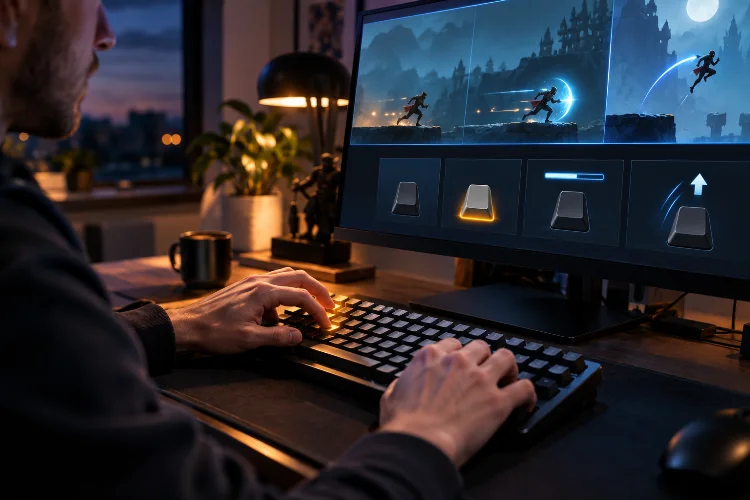
Keyboard input sounds simple until your character suddenly jumps ten times from one press of the Space key.
Maybe you want a character to keep moving while the player holds an arrow key. Perhaps a menu should open only once when Escape is pressed. Or maybe an attack should charge while a button is held and fire when the player releases it.
These situations require different kinds of keyboard checks.
Learning how to detect Key Pressed, Key Down, and Key Released in GameMaker is important because each keyboard state serves a different purpose.
GML provides three main functions for these situations: keyboard_check_pressed(), keyboard_check(), and keyboard_check_released().
They look similar, but their behaviour is very different.
Once you understand when each function returns true, creating responsive movement, menus, attacks, interactions, and other control systems becomes much easier. This guide explains all three methods with practical examples and common mistakes beginners should avoid.
1. How Keyboard Input Works in GameMaker
GameMaker checks keyboard input as the game runs through its steps.
Your game normally updates many times every second, and functions such as keyboard_check() can tell you whether a particular key is currently being held during each step. GameMaker’s keyboard functions return Boolean values, meaning either true or false.
A basic keyboard check looks like this:
if (keyboard_check(vk_right))
{
    x += 4;
}
As long as the Right Arrow key remains down, the object moves four pixels during every step.
GameMaker provides built-in virtual-key constants such as vk_left, vk_right, vk_up, vk_down, vk_space, vk_enter, and vk_escape.
For normal letters and numbers, you can use ord():
keyboard_check(ord("A"));
For these keyboard-checking functions, GameMaker documents ord() usage for capital letters A–Z and digits 0–9.
Understanding this basic input system makes the three keyboard states much easier to distinguish.
2. Key Down: Use keyboard_check()
A Key Down check asks a simple question:
“Is this key currently being held?”
In GML, you use:
keyboard_check(key);
Unlike the pressed and released functions, keyboard_check() returns true during every step that the key remains held down.
That makes it perfect for continuous actions.
For example:
if (keyboard_check(vk_left))
{
    x -= 4;
}

if (keyboard_check(vk_right))
{
    x += 4;
}
Holding the Left Arrow keeps moving the character left. Holding Right keeps moving it right.
This behaviour is ideal for walking, aiming, steering vehicles, moving cameras, charging abilities, or any other action that should continue until the player releases the key.
GameMaker’s own movement examples use this approach for directional controls, including calculating horizontal movement from left and right keyboard states.
Why Key Down Is Not Always the Right Choice
Imagine using this code for opening a menu:
if (keyboard_check(vk_escape))
{
    menu_open = !menu_open;
}
Because the condition runs every step while Escape remains down, menu_open could switch between true and false extremely quickly.
The code technically works, but the result is not what you intended.
For one-time actions, you usually need Key Pressed instead.
3. Key Pressed: Use keyboard_check_pressed()
A Key Pressed check detects the exact moment a key changes from not being held to being held.
The syntax is:
keyboard_check_pressed(key);
GameMaker states that this function returns true only during the step when the key is initially pressed. To trigger it again, the user must first release the key and then press it again.
For example:
if (keyboard_check_pressed(vk_space))
{
    jump();
}
Even if the player holds Space for half a second, the jump action runs only once.
This makes Key Pressed excellent for actions such as jumping, firing a single shot, selecting a menu option, opening an inventory, interacting with an NPC, or switching weapons.
Another example could be:
if (keyboard_check_pressed(ord("E")))
{
    interact_with_object();
}
The interaction happens once for every seperate press of E rather than continuously while the button stays down.
That distinction is small in code but extremely important in gameplay.
4. Key Released: Use keyboard_check_released()
Sometimes you care about the moment the player lets go of a button.
That is what keyboard_check_released() detects:
keyboard_check_released(key);
The function returns true only during the step when a key changes from held down to no longer being held. It will not return true again until the key is pressed and subsequently released another time.
A simple example is:
if (keyboard_check_released(vk_space))
{
    show_debug_message("Space released");
}
This can be useful for charge-based mechanics.
For example, imagine a bow where holding Space increases power:
if (keyboard_check(vk_space))
{
    charge += 0.2;
}
Then releasing Space fires the arrow:
if (keyboard_check_released(vk_space))
{
    fire_arrow(charge);
    charge = 0;
}
This combines Key Down and Key Released into one mechanic.
Similar systems can be used for charged attacks, throwing strength, rhythm games, drag-and-release controls, or abilities that activate after the user finishes holding a key.
5. Key Pressed vs. Key Down vs. Key Released
The easiest way to understand these functions is to imagine one key being held for several game steps.
Suppose Space is pressed on Step 10, held until Step 14, and released on Step 15.
keyboard_check_pressed(vk_space) is true only on Step 10.
keyboard_check(vk_space) is true on Steps 10 through 14.
keyboard_check_released(vk_space) is true only on Step 15.
That simple timeline explains most keyboard-input situations.
You can think of them as three questions:
Pressed: Did the player just start pressing the key?
Down: Is the player currently holding the key?
Released: Did the player just stop pressing the key?
Once you start thinking about controls in these terms, selecting the correct GML function becomes much more straightforward.
6. Practical Movement and Jumping Example
A basic platformer demonstrates how different keyboard states can work together.
Horizontal movement normally needs continuous input:
var _move = keyboard_check(vk_right) - keyboard_check(vk_left);

x += _move * 4;
Because each check returns a true-or-false result that can be used numerically in this context, pressing Right produces positive movement while pressing Left produces negative movement. GameMaker uses a similar technique in its official movement guide.
Jumping is slightly different.
You may prefer:
if (keyboard_check_pressed(vk_space))
{
    if (place_meeting(x, y + 1, obj_ground))
    {
        vspeed = -8;
    }
}
Using Key Pressed prevents the jump logic from repeatedly firing every step while Space remains held.
You could then detect release to create variable jump height:
if (keyboard_check_released(vk_space) && vspeed < 0)
{
    vspeed *= 0.5;
}
Releasing Space early reduces upward velocity, giving the player finer control over jump height.
This is a good example of how all three keyboard states can support one gameplay system.
7. Using Letters and Special Keys Correctly
Arrow keys, Space, Enter, and similar keys have convenient vk_* constants.
Examples include:
vk_left
vk_right
vk_space
vk_enter
vk_escape
Letters generally use ord():
if (keyboard_check(ord("W")))
{
    y -= 4;
}
Use a capital letter inside ord():
ord("W")
rather than:
ord("w")
GameMaker specifically documents the use of capital Roman letters A–Z and digits 0–9 with ord() for these keyboard functions.
For example, WASD movement could look like this:
var _left  = keyboard_check(ord("A"));
var _right = keyboard_check(ord("D"));
var _up    = keyboard_check(ord("W"));
var _down  = keyboard_check(ord("S"));
Keeping key definitions consistent also makes future control-remapping systems easier to build.
8. Common Keyboard Input Mistakes
One of the most common beginner mistakes is using Key Down for something that should happen only once.
For example:
if (keyboard_check(vk_space))
{
    instance_create_layer(x, y, "Bullets", obj_bullet);
}
At 60 game steps per second, holding Space could create bullets repeatedly rather than firing one projectile.
Using keyboard_check_pressed() would usually be more relevent for single-shot weapons.
Another problem is putting keyboard code in an event that does not run continuously. Most real-time control checks belong in a Step Event because it executes repeatedly as the game updates.
You should also avoid unnecessarily duplicating input logic across many objects.
A larger project may eventually benefit from storing input states in variables:
move_left = keyboard_check(ord("A"));
move_right = keyboard_check(ord("D"));
jump_pressed = keyboard_check_pressed(vk_space);
Gameplay code can then use those variables instead of repeatedly calling input functions everywhere.
This can make your control system easier to change later, especially if you eventually add gamepad support or configurable controls.
9. Choosing the Right Keyboard Check
A simple rule can save you from many input bugs.
Use keyboard_check() when an action should continue while a key is held.
Use keyboard_check_pressed() when something should happen once at the beginning of a press.
Use keyboard_check_released() when something should happen once after the player lets go.
Do not choose based purely on which function name sounds familiar. Think about the physical action you expect from the player.
Walking feels natural while a key remains down.
Opening a door usually happens once when a key is pressed.
Releasing a charged attack makes sense when the button comes back up.
Choosing input functions according to player behaviour usually leads to cleaner controls than trying to fix incorrect input logic afterward.
Knowing how to detect Key Pressed, Key Down, and Key Released is one of the foundations of responsive GameMaker controls.
keyboard_check() handles continuous input while a button is held. keyboard_check_pressed() detects the first step of a new press, making it ideal for jumps, menu actions, and single attacks.
keyboard_check_released() detects when the player lets go, which is useful for charging systems and other release-based mechanics.
The best way to understand the difference is to experiment.
Create a simple GameMaker object and print a message for each keyboard state. Then try movement, jumping, and a charged attack. After seeing the three functions behave in real time, choosing the correct keyboard check will start feeling automatic rather than confusing.