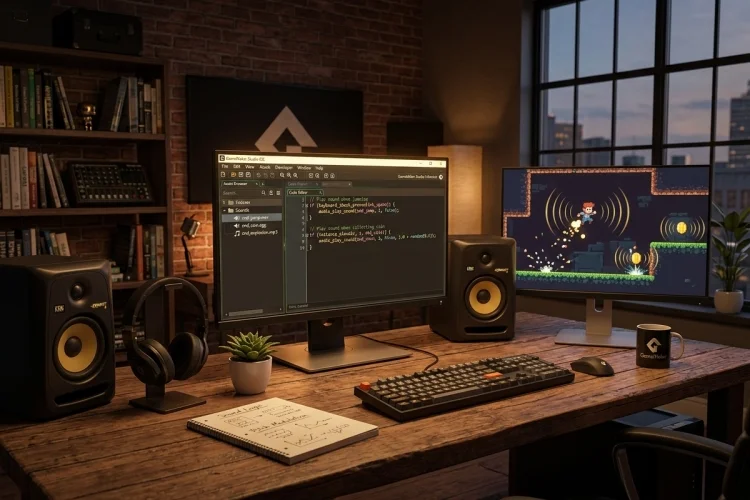
Sound effects can make even a simple game feel much more responsive. A jump becomes more satisfying with a quick movement sound, collecting a coin feels rewarding with a bright chime, and an enemy hit becomes easier to understand when it produces a clear impact effect.
GameMaker includes a built-in audio system that lets you import sound files, configure their quality and compression, and play them through GML.
You can also control individual sounds after playback begins, changing their volume, pitch, or stopping them when they are no longer needed. Learning how to import and play sound effects in GameMaker is a useful early skill for any 2D developer.
The process itself is straightforward, but there are several details worth understanding. Choosing the right file format, triggering sounds from the correct event, and preventing unwanted repetition can make a major difference.
This guide walks through the complete beginner workflow, from preparing an audio file to playing it during collisions, attacks, menu interactions, and other gameplay events.
Prepare a Suitable Sound Effect
Before importing anything, choose a sound that matches the action it represents. A short click may work well for a menu button, while a heavier impact sound may suit an enemy attack or explosion.
GameMaker accepts WAV, MP3, and OGG audio files. Its official documentation generally recommends WAV for short sound effects because uncompressed audio can begin playing without runtime decoding.
MP3 and OGG files are smaller and are often more practical for longer sounds or music.
Trim unnecessary silence from the beginning and end of the file. Even a small silent section at the start can make an action feel delayed, especially for attacks, jumps, and interface clicks.
Also make sure you have permission to use the audio. You can create your own effects, purchase licensed sound packs, or use files released under terms that allow use in games.
Create and Import a Sound Asset
Open the Asset Browser in GameMaker and create a new Sound asset. Give it a clear name such as:
snd_player_jump
The snd_ prefix is optional, but it helps distinguish audio resources from sprites, objects, rooms, and scripts.
Open the new asset in the Sound Editor and select Load Sound. Choose a WAV, MP3, or OGG file from your computer. You can then preview it directly inside the editor and hear how changes to its settings affect playback.
GameMaker also allows audio files to be dragged into the development environment, creating sound assets automatically. This can be convenient when importing several effects at once.
Use descriptive names rather than labels such as sound1 or new_audio. A larger project may eventually contain dozens of sounds, so names such as snd_enemy_hit, snd_door_open, and snd_ui_confirm are much easier to manage.
Configure the Sound Editor Settings
The Sound Editor contains properties that affect how the audio is stored and exported. These include volume, compression, quality, sample rate, and whether the sound should be streamed.
Short effects are commonly left uncompressed or loaded into memory because they need to respond immediately. Longer audio files can benefit from compression because it reduces their storage size, although compressed audio requires some decoding during playback.
Do not automatically use the highest possible quality for every effect. A sound lasting a fraction of a second may not need the same settings as a detailed music track. Lower settings can reduce the project size without creating an obvious loss in quality.
Use the preview controls to compare different configurations. Listen for distortion, unwanted noise, or excessive volume before testing the sound inside the game.
The default asset volume can also be changed in the editor. However, final balancing should still happen during gameplay, where the effect can be compared with music, dialogue, and other sounds.
Play Your First Sound Effect with GML
The main GML function for ordinary sound playback is audio_play_sound().
A basic example looks like this:
audio_play_sound(snd_player_jump, 10, false);
The first argument is the Sound asset. The second is its priority, and the third determines whether the audio should loop. Setting the final argument to false makes the effect play once.
Priority matters when the game reaches its limit for simultaneous audio channels. A higher-priority effect may replace a lower-priority one when too many sounds are active. The exact scale is up to you, so priority values of 1 and 10 work in the same relative way as 10 and 100.
For example:
audio_play_sound(snd_footstep, 1, false);
audio_play_sound(snd_player_death, 100, false);
The death sound receives greater importance than the footstep. This does not make it louder; it only affects which sound GameMaker favours when channel limits are reached.
Trigger Sounds from Gameplay Events
A sound effect should normally play when a specific action happens, not continuously throughout the Step Event.
For a jump, you might combine the sound with a newly pressed input:
if (keyboard_check_pressed(vk_space) && on_ground)
{
    vertical_speed = -jump_force;
    audio_play_sound(snd_player_jump, 10, false);
}
A collectible can play its effect inside a Collision Event:
global.score += 10;
audio_play_sound(snd_coin_collect, 10, false);
instance_destroy();
An enemy could play a damage sound when its health is reduced:
take_damage = function(_amount)
{
    hp -= _amount;
    audio_play_sound(snd_enemy_hit, 20, false);
};
Be careful with Collision Events that remain active while two instances continue touching. Such an event may run during multiple game steps, causing the same sound to start repeatedly.
GameMaker’s official tutorials highlight this as a common cause of unpleasant overlapping audio.
Prevent repetition by using a cooldown, changing the object’s state, destroying the relevant instance, or checking whether the effect is already playing.
Prevent Unwanted Repeated Playback
You can use audio_is_playing() to check whether a Sound asset or individual sound instance is currently active:
if (!audio_is_playing(snd_alarm))
{
    audio_play_sound(snd_alarm, 20, true);
}
When given a Sound asset, the function returns true if any instance of that sound is active. Paused audio is also treated as active.
This is helpful for alarms, machine loops, environmental effects, and other audio that should not restart every step.
For frequently repeated sounds such as footsteps, a timer may provide better control:
if (is_moving && footstep_timer <= 0)
{
    audio_play_sound(snd_footstep, 5, false);
    footstep_timer = 12;
}

footstep_timer = max(0, footstep_timer - 1);
The effect now plays at controlled intervals rather than every frame.
Do not use audio_is_playing() automatically for every effect. Rapid gunfire, for example, may intentionally create several overlapping sound instances. Choose the behaviour that matches the action.
Store and Control a Sound Instance
The audio_play_sound() function returns a unique Sound Instance ID. Store that value when you need to control one specific playback:
alarm_sound = audio_play_sound(snd_alarm, 20, true);
You can later stop that exact instance:
audio_stop_sound(alarm_sound);
When audio_stop_sound() receives a Sound Instance ID, it stops only that playback. When it receives a Sound asset, it can stop every active instance created from that asset.
This distinction is important when multiple objects use the same effect. Several machines might play snd_engine, but destroying one machine should stop only its own engine sound.
You can check the stored instance before stopping it:
if (audio_is_playing(alarm_sound))
{
    audio_stop_sound(alarm_sound);
}
Store instance IDs for loops, charging effects, environmental sounds, and other audio that must be modified after it starts.
Adjust Volume and Pitch
GameMaker refers to audio volume as gain. You can change the gain of a Sound asset or an individual playing instance:
audio_sound_gain(alarm_sound, 0.5, 500);
This moves the gain toward 0.5 over 500 milliseconds. A value of 0 is silent, while 1 represents the normal full level.
Gradual gain changes are useful for fading effects rather than stopping them abruptly. For example:
audio_sound_gain(alarm_sound, 0, 1000);
Pitch can be changed with audio_sound_pitch():
audio_sound_pitch(alarm_sound, 1.1);
A multiplier of 1 uses the original pitch, values below 1 lower it, and values above 1 raise it. Platform-specific pitch limits can vary, so extreme settings should be tested on every intended target.
Small random pitch differences can make repeated effects feel less artificial:
var _sound = audio_play_sound(snd_footstep, 5, false);
audio_sound_pitch(_sound, random_range(0.95, 1.05));
Keep the range subtle. Large variations may sound comedic or distorted unless that is the intended style.
Troubleshoot Common Audio Problems
When no sound is heard, first confirm that the correct Sound asset was imported and that the game is calling the playback code. Add a temporary debug message beside the function call if necessary.
Check the volume inside the Sound Editor and make sure the game’s master audio has not been muted. Test with another known working file to determine whether the problem comes from the code or the imported audio.
If an effect sounds delayed, inspect the original file for leading silence. Compression or streaming settings may also be unsuitable for a very short, timing-sensitive sound.
When an effect becomes painfully loud or distorted, several instances may be overlapping. Review Collision Events and Step code to make sure playback occurs only when the action begins.
For HTML5 projects, browser audio rules can affect whether sounds are immediately playable. GameMaker provides audio_sound_is_playable() for checking whether a Sound asset can currently be played on that target.
Importing and playing sound effects in GameMaker begins with creating a Sound asset, loading a WAV, MP3, or OGG file, and configuring it through the Sound Editor.
Short WAV effects are often useful for immediate playback, while compressed formats can reduce the size of longer audio. The audio_play_sound() function handles basic playback, but polished audio requires careful timing.
Trigger effects from meaningful actions, prevent unwanted repetition, and store Sound Instance IDs whenever individual playback needs to be stopped or adjusted. Create three test sounds for a jump, collectible, and player hit.
Add them one at a time, compare their volume, and test whether they ever overlap unexpectedly. Once those basic effects work, experiment with gain fades, slight pitch variation, and more detailed audio feedback.